Troubleshooting
This page collects solutions to common problems.
The program won't start
"Nothing happens when I double-click"
-
Wait a little. The first start can take up to a minute while the database is set up.
-
Check Task Manager. Press Ctrl+Shift+Esc — is a
pastpaths.exeprocess running? If so, wait. If not, try starting again. -
Antivirus. Some antivirus programs block new programs. Allow PastPaths in your antivirus and try again. → Read more
-
Reinstall. Uninstall and reinstall — your data stays as long as you don't choose to delete it during the uninstallation.
"Error message on start"
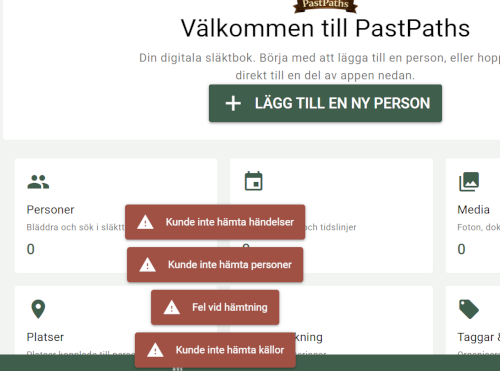
Windows or antivirus warns you
"Windows protected your PC"
Windows SmartScreen shows this box for programs downloaded from the internet that aren't code-signed. Code signing is a purchased certificate that PastPaths doesn't have yet. The warning doesn't say the program is dangerous, only that Windows doesn't recognise it.
- Click More info.
- Check that the file is called
PastPaths-Setup-…exe. - Click Run anyway.
Your antivirus blocks or removes the file
PastPaths is built with PyInstaller, which packs Python and the program into a single file. A few antivirus programs, mainly those that judge files with machine learning, sometimes mistake such programs for malicious ones. This is called a false positive.
- Only download from pastpaths.se or PastPaths' page on GitHub.
- If you want to check the file yourself, you can upload it to virustotal.com. There it's scanned by around seventy antivirus programs. One or two isolated hits are typical of a false positive. A real virus is flagged by many.
- Allow the file in your antivirus program, or add an exception for it, and install again.
- Feel free to let me know if your antivirus warns you, and which one it is. → Report
Import
GEDCOM import
"The import seems to be hanging"
Large files take time. A file with thousands of persons can take 5–10 minutes. If the progress indicator is moving — let it run.
If the indicator is stuck for more than 10 minutes:
- Wait anyway — images can be the slow part
- Check the import history under Administration → Import & Export
- If it's completely stuck — restart the program and try again
"Images didn't come along"
The GEDCOM file only points to the image files' names — the actual images need to be on disk when you import. Check that:
- The image folders are alongside the GEDCOM file
- The image files have the same names the GEDCOM file specifies
"Persons came in twice"
If you import the same file twice, or if different files contain the same people, duplicates can be created. Use the duplicate search in PastPaths to find and merge them.
→ More about duplicate handling
WordPress import
"Images couldn't be downloaded"
WordPress images are downloaded directly from your WordPress server. If the site is offline, or if the image has been deleted, it won't work.
You can still import the text — just the image links will be broken.
Backups
How do I make a backup?
- Go to Administration → Import & Export.
- Click Create backup in the System backup card.
The file is saved in the export folder, for example C:\Users\[YourUsername]\Documents\PastPaths\Backups\pastpaths_backup_yyyymmdd_hhmmss.zip. It contains the database and all uploaded images and documents. Then copy it to a USB stick or an external hard drive — preferably to several places.
Don't put PastPaths in a synced cloud folder
Don't put the program folder or the database in a folder that syncs with OneDrive, Dropbox, iCloud, or similar. The database can be damaged if it's synced while PastPaths is running.
I can't find my backup
Backups from this version are in Documents\PastPaths\Backups. The Open export folder button at the top of the Import & Export page and on the Maintenance page opens the folder. If Windows has moved Documents to OneDrive, the folder is there.
Backups from earlier versions are in the Downloads folder. The installer's backups are in the folder you chose when upgrading, by default Documents\PastPaths-Backups.
Restoring a backup
- Go to Administration → Import & Export.
- Choose the ZIP file in the Select backup ZIP field and click Restore.
- Restart PastPaths once the restore is done.
Before the restore, a copy of the current database is saved in Documents\PastPaths-Backups\pre-restore.
Performance
"The program feels slow"
Large libraries: If you have thousands of persons or images, some views can become slow. Tips:
- Use filters and search instead of scrolling through entire lists
- Large images take time to render — consider shrinking images wider than, say, 4000 pixels
Display
"Images aren't showing"
-
Close and reopen the program.
-
Check that the image file is actually in the location PastPaths expects.
-
Some formats may require extra software — JPG, PNG, GIF are always supported.
"A person is shown as living even though they're dead"
Check the person's Events tab: the death should be there, and the person should have the role Primary person. A death where the person is a witness doesn't count as the person's own death.
→ Why is a person shown as living? · → Birth and death
Search
"The search doesn't find what I'm looking for"
- Check the spelling. Upper and lower case, å, ä, ö, and accents don't matter, but ł, đ, and œ must be typed as they are.
- If you search for an event type, for example "death", at least three characters are needed. A name and a type together ("olle died") give no results — search for just the name.
- In the search box at the top: check that the All tab or the right type is selected.