Places
In PastPaths, places aren't just names typed into a text field — they're objects with a life of their own. Once you link a person to a place, you can see "everyone in the family who lived in Hagfors" or "every event that took place in Mariakyrkan".
Create a place
You can create places in two ways:
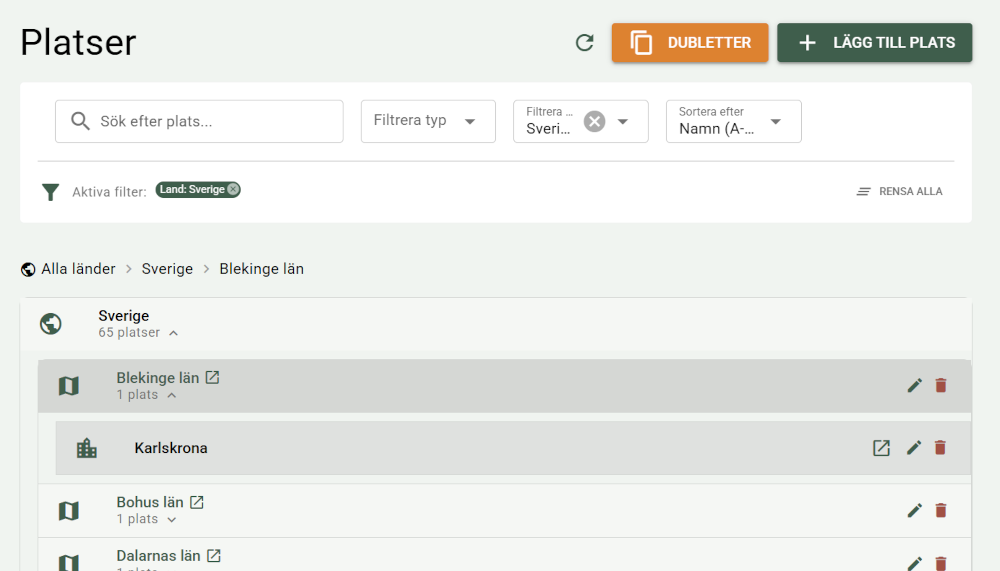
Go to Places → + Add place.
When you fill in, for example, a person's place of birth — start typing the place name. The search covers every place in the database, and more results are loaded as you scroll ("Showing 30 of 412"). If the place doesn't exist, you can create it right there without leaving the form.
What do you fill in?
A place can have:
- Name — e.g. "Härnösand", "Långsjö farm", "Mariakyrkan"
- Address — street address or a closer description
- City/town
- Parish
- County/province
- Region — state, province, or Bundesland. Only relevant for some countries (e.g. Belgium, the USA, Germany) — leave it empty otherwise, e.g. for Sweden.
- Country
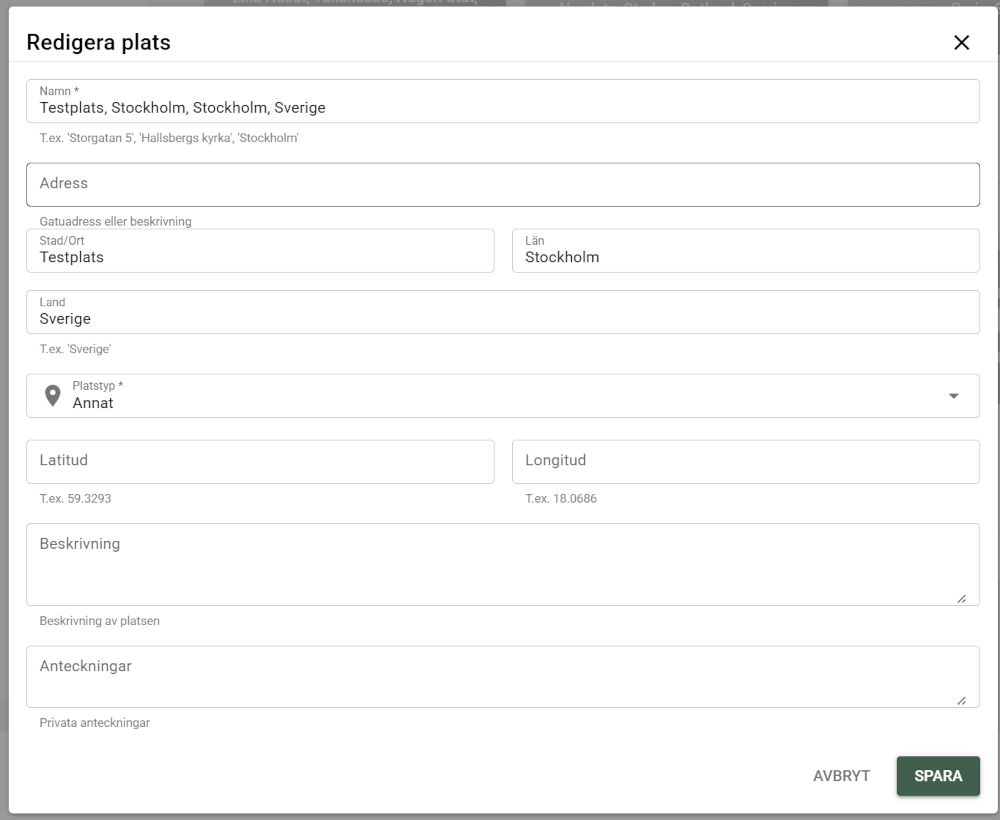
- Place type — city, church, farm, village, province, diocese, and more
- GPS coordinates — for the map
- Notes — free text about the place
- Photos of the place
Country, region, county, parish, and city suggest existing values from your own database as you type — so the same place is spelled the same way every time, instead of, for example, "Stockholm County" and "Stockholms County" becoming two different values. You can still type a new value if the one you're looking for doesn't exist yet.
Default country
Under Settings → Default country you can choose which country is suggested automatically when you add a new place. Handy if almost all your places are in the same country — you don't have to type it every time, but you can always change it for individual places.
Place Library — ready-made packs
Instead of typing in common reference places (counties, states, parishes) by hand, you can import them as ready-made packs via Administration → Library. That gives you a consistently spelled foundation to build on, so the same place doesn't end up as several different records.
→ More about the Place Library
Link places to persons
A person is linked to a place through events — not through a separate "add place" link. When you enter a person's place of birth or death directly in the person form, a link to the place is created automatically. For every other kind of connection to a place — residence, occupation, education, marriage, a visit — you add an event for the person and enter the place there.
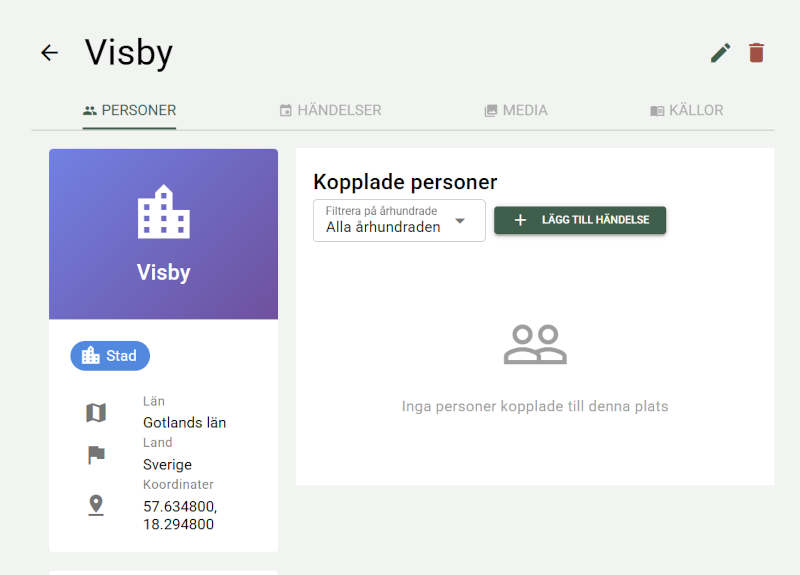
This means that on a place's page you can see everyone who was there in any context: born, died, resident, married, or with an occupation linked to the place — all gathered under the "Persons" tab.
The Link person via event button on the Persons tab opens the event dialog with the place preselected. Choose an event type — for example Birth, Residence, or Emigration — and add the person in the dialog.
From the person's side, you do the same: the Add place button on the person's Places tab opens the event dialog with the person preselected.
Link places to events
When you create an event (marriage, baptism, emigration), you state where it took place. That place is linked to the event automatically.
The place's events
On a place's page, the Events tab shows every event that took place there, as a timeline. The number on the tab shows how many events the place has.
The timeline works as it does on the timeline page: 20 events at a time with a page selector, filters for event type and year range, sorting oldest or newest first, and the Compact, Detailed, and By year views. Filters and sorting apply to all of the place's events, not just the ones that are visible.
The ⋮ menu next to each event has Show details, Edit, and Delete.
The place's blog posts
The Blog tab shows the blog posts linked to the place, 20 at a time. The number on the tab shows how many there are. Click a post to open it. The link is made in the blog editor. → Read more about the blog
Map
If you enter coordinates for a place, it's shown on the map.
Bookmark and research note
The header of a place's page (and the place dialog) has a bookmark button and a note button. Bookmark the place to come back later, or link it to a research note — for example "Who lived at Långsjö farm before 1850?".
Browsing places
The places list is built as a tree instead of one long flat list — handy as soon as you have more than a handful of places to keep track of. You expand one level at a time, and only one branch is open at a time:
- Country — every country you have places in, and how many places each one has
- Region (shown only when needed) — for countries with a fourth administrative level, e.g. a state in the USA, a province in Belgium, or a Bundesland in Germany. If none of your places in the country has a region filled in — as for Sweden — this step is skipped automatically.
- County — the counties within the chosen country (or the chosen region, if the country uses the region level). Provinces and dioceses are also shown here as rows of their own, since they sit at the same level as the counties without being counties.
- Town/parish — towns or parishes within the chosen county
- Individual places — the places in the chosen town, one row per place
Each level shows 100 countries, counties, or towns at a time, and under a town 50 places are shown at a time. If there are more, Load more (showing X of Y) is shown at the end of the list.
A place that is itself a level — for example a county imported from the Place Library — is shown directly at its level, with a button to open the place. If there are several such places with the same name, the others are shown when you expand the group.
A breadcrumb at the top shows where in the tree you are ("All countries / Sweden / Stockholm County", or for a country with a region level: "All countries / Belgium / Wallonia / Liège"), and you can click back to any earlier level.
Places that are missing a value at a given level (e.g. no county entered) end up in a group of their own — "Unknown country", "Unknown region", "Unknown county", or "Unknown parish" — last on their level, so they don't disappear from the list.
Searching and filtering places
The search box in the places list searches the place's name, address, city, parish, county, region, country, and description. The search ignores upper and lower case, accents, dots, and rings — "orebro" finds "Örebro".
Searching, the place type filter, the tag and category filter, the missing coordinates filter, and the country filter all bypass the tree and show a flat list of your whole database instead. The list shows 50 places per page with a page selector below it, and can be sorted by name, city, country, or place type. Only clicks in the tree itself give a level-by-level breakdown.
Place statistics
From the welcome page you'll find a summary of statistics about your places — the most common countries, counties, and parishes — with a "More statistics" link to the full statistics, which are under Research → Place statistics.
The statistics page shows:
- Most common countries and counties — number of places per country and county. Click a row to jump straight into that part of the tree.
- Most common place types — the breakdown across church, farm, village, and more
- Most linked persons and events — which places appear most often in your research
- Missing coordinates — how many places aren't on the map yet, with a link to a filtered list
- Most common burial places
- Earliest and most recent registered event — which places have the earliest and the most recent dated event linked to them
- Most common emigration/immigration places — especially relevant if your family emigrated
Residents by place
On a place's detail page, under the "Persons" tab, you can filter the linked persons by century — handy for seeing, for example, who lived on a particular farm in the 1800s specifically, without scrolling through every century at once. The dropdown automatically suggests the most recent century with registered data for that place.
Migration patterns
Still on a place's "Persons" tab, a card shows where people came from and where they moved on to, based on each person's residences sorted chronologically. It gives a quick picture of the place's in- and out-migration — especially useful for tracing emigration waves or common moving routes between places.
Requires a start date
The migration pattern can only put a residence in the right chronological order if it has a start date. If a link has no date, it isn't shown on this card, even though it's included in the other statistics.
Delete a place
Before a place is deleted, PastPaths shows what's affected. If the place is still in use — as a place of birth or death, by an event, by media, or by a blog post — it can't be deleted, and the dialog shows what's using it.
If the place is a duplicate of another place, merge them instead, and all links are moved to the place you keep. → Read more about duplicate handling
See also
- Place Library — import ready-made packs of reference places instead of typing them in by hand
- Events — how places are linked to events and persons
- Media — photos and documents linked to a place, with the same card/list view switch as on the Media page