Persons
Persons are the heart of your family history. This page walks through how to create, edit, and find persons in PastPaths.
Create a person
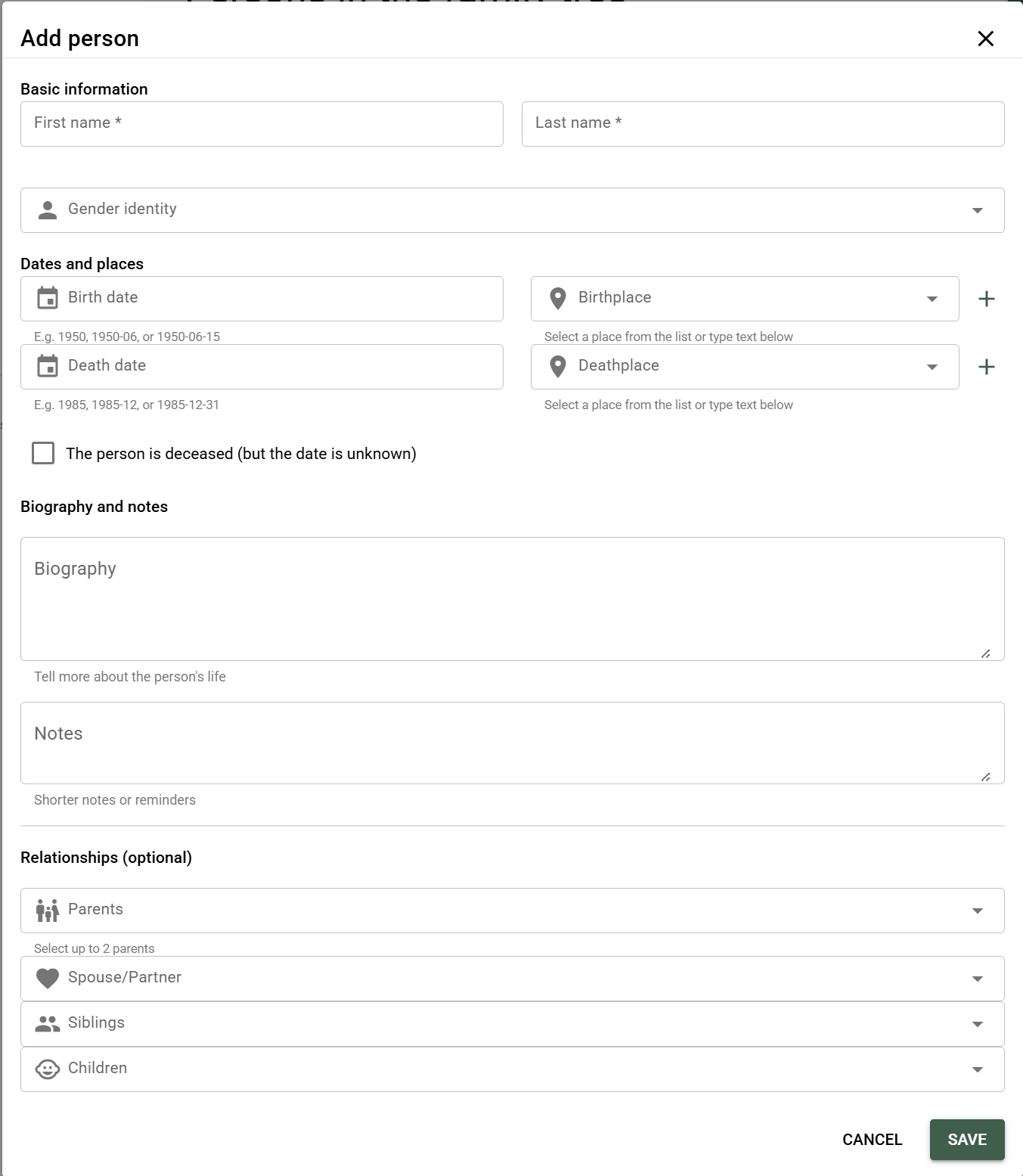
Go to Persons in the main menu and click "+ New person" (or the equivalent).
Fill in the form with:
- First name (required)
- Last name
- Nickname — what the person was informally called
- Alternate names — former names, name prefixes, or aliases found in sources (free text, separate multiple with semicolons)
- Gender — male, female, or leave blank if unknown
- Date of birth and place of birth
- Date of death and place of death (if the person has passed away)
- Notes — free text about the person
- Tags & categories — group and filter persons (can also be added later via the detail page)
You don't need to fill in everything
It's completely fine to create a person with just "Anna, 1850s, from somewhere in Värmland" and fill in the rest as you find more.
→ Read more about date precision
→ Read more about how places work
Living persons
For currently living relatives, you can mark the person as "living." Note that reports and the GEDCOM export currently don't hide details about living people — review them before you share them.
- If you know the person has passed away but don't have a year or date, you can check the box.
- You don't need to enter an exact date in PastPaths — just a year, or a year and month, works too.
- You can write a biography and notes about the person and add relationships to several other people.
- If the person has a death event, they're shown as deceased, even if the event has no date.
GDPR and living relatives
Keep in mind that information about currently living people falls under data protection regulations. PastPaths makes it easy to keep your data private (everything is local), but it's still worth asking your relatives if they're okay with their information being saved — especially if you share printouts or GEDCOM files with others.
Date precision
PastPaths understands that old dates are rarely exact. For dates of birth and death, you can enter:
- Full date —
1872-03-15, shown as 15 Mar 1872 - Year and month —
1872-03, shown as Mar 1872 - Just a year —
1872, shown as 1872
The date is always shown with the precision you entered — if you type only a year, only the year is shown, not January 1.
This matters — if you enter an exact date when you're only guessing that Erik was born in 1872, you won't be able to tell later what you knew and what you guessed. Enter just the year instead, and write in the notes what the information is based on.
Approximate dates on events
Events also have Date accuracy, where you can state how certain the date is.
Add relationships
Once a person is created, you can link them to other people:
- Parents — who was the person's father and mother?
- Partner — married, cohabiting, engaged, and more
- Children — choose the Child type in the relationship dialog, or add the parents from the child's page
- Siblings
- Other relations — godparent, witness, and similar, in both directions
PastPaths automatically works out indirect relationships (cousin, grandfather, brother-in-law) based on the direct ones you've entered.
If you want to go through a person's closest relationships and check that they're right — with dates and places visible for everyone — use Research branch.
→ Read more about relationships
Places and events
The person's page has the Events and Places tabs.
Events lists everything the person took part in. Here you can:
- Add event — create a new event with the person as the primary person
- Link existing event — look up an event that already exists (at least two characters; the search looks at title, description, place, event type, tags, categories, and the names of linked people), choose the person's role, and link it. The search covers the whole database. Results are shown 30 at a time and more are loaded as you scroll; at the bottom it says how many were found, for example "Showing 30 of 120". Events the person is already linked to are marked Already linked.
Places shows every place the person is linked to through their events. People are linked to places through events, so the Add place button opens the event dialog with the person preselected. Choose an event type — for example Residence for a move — and an existing or new place. The place shows up on the tab as soon as the event is saved.
→ Read more about how places are linked to people
Birth and death
Birth and death exist both on the person and as events, and they're linked both ways:
- If you fill in the date or place of birth or death in the form, the event is created or updated.
- If you add, change, or delete a birth or death event on the Events tab — or merge two — the person's date and place are updated. This shows in the person list, the family tree, and the search.
- Only events where the person is the Primary person count. A death where the person was a witness doesn't affect the person's date of death.
If the person has several birth or death events, the date is taken from the most recently created one that has a date, and the place from the most recently created one that has a place. A person is only born and dies once, so the Events tab then shows a prompt with the Merge button. It opens the merge with the two most recently created events, and the most recent one is preselected to be kept. Other events, for example moves, can occur any number of times.
Don't clear both date and place for uncertain details
If you clear both the date and the place of birth or death in the form, the person's link to the event is removed everywhere. If the person is the only one in the event, the event is deleted, along with its source citations and media links. PastPaths warns you before anything is saved. If the details are just uncertain — keep them and add a tag, for example "To verify".
Through events
People who took part in the same events — a baptism witness, the priest at a wedding, an attendee — often say something about who the person knew. The Through events section gathers them in two tables:
- Others with a role in this person's events — for example the witnesses at the person's baptism
- This person's roles in other events — for example when the person was a witness themselves
The tables show the person, the role, the event, the place, and whether the event has a source. The section is in the person dialog under the relationships, in Research branch, and in the edit dialog. In the person dialog, clicking the name opens the person and clicking the event opens the event.
The links come from the events' persons and roles and aren't saved separately — to change a link, you change the event. The roles Witness, Officiant, Attendee, and Other give links. The role holder is linked to the event's primary person and spouse. If the event has neither, they're linked to the event's other persons. The family roles parent and child don't give links, since they already exist as relationships.
The links can also be shown in the family tree's network view.
Bookmark, note, and Research branch
The header of the person's page has three buttons that help with your research:
- Bookmark — bookmark the person to come back later, with an optional note. → Bookmarks
- Research note — create a note about the person or link them to an existing one. → Research notes
- Research branch — go through the person's parents, partners, children, and siblings in tables. → Research branch
The same buttons are in the person dialog that opens from the family tree.
Profile picture
Once you've saved a new person, you can set an image to represent them. It's shown in lists, the family tree, and reports.
To set a profile picture:
- Go to the person's page (or find the person in the persons list)
- Click the pencil icon in the top right corner
- Under Profile picture, choose one of:
- Link existing — choose an image that's already in the media library. You can search the whole library, and the current profile picture is marked Current.
- Upload new — upload an image from your computer. It's saved to the media library, and the person is tagged in it.
- Remove image — the person gets no profile picture. The image itself stays in the media library.
Only images can be a profile picture — documents, video, and audio can't be chosen or uploaded here. The profile picture also shows up in the person's media gallery.
→ Read more about the media library
Today's birthdays
The welcome page automatically shows who in your family has a birthday today — matched by day and month, regardless of year. If the person has passed away, "Born X years ago" is shown instead of a current age.
Born on a leap day
If someone was born on February 29, their birthday is shown on March 1 in non-leap years, with a small note about it.
An exact date of birth (day, month, and year) is required for the person to appear in the list — just a year isn't enough.
→ Browse the full calendar to see other days than today.
Finding persons
In the persons list, you can:
- Search by name, place of birth and death, tag, and category. The search ignores upper and lower case and accents, so "lundstrom" finds "Lundström".
- Filter by birth year, place, gender, tags
- Sort alphabetically or by date of birth
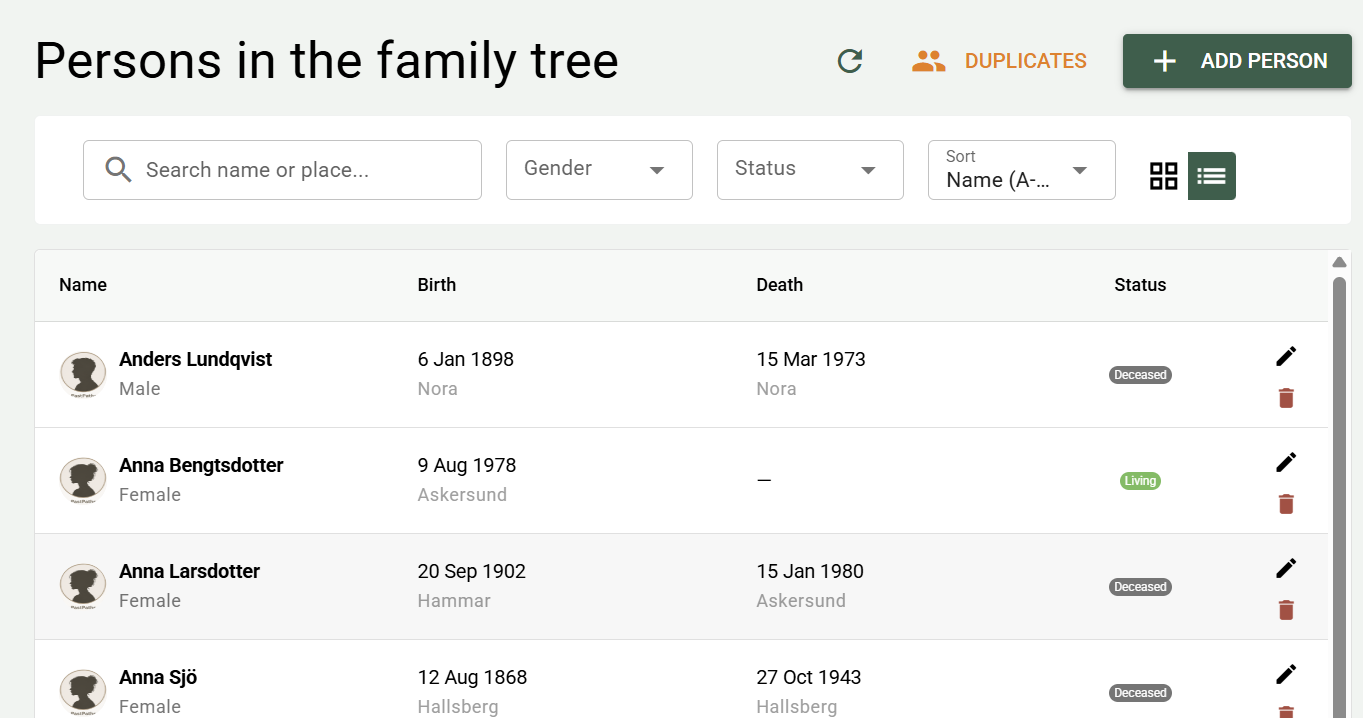
Click the **trash can** to delete a person.
Person statistics
From the welcome page you'll find a summary of statistics about everyone in your family history — with a "More person statistics" link to the full statistics, which are under Research → People statistics.
The statistics page shows:
- Names — most common surnames and first names split by gender, with the option to filter by birth decade
- Gender distribution
- Relationships — breakdown by relationship type (parent, partner, sibling, other relation) and subtype (biological, adoptive, married, half-sibling, etc.)
- Places — most common birth and death places, with the option to switch between place, county, and country
- Family — number of children per family and partner status (active/ended relationship)
- Age and lifespan — average age, youngest and oldest at death, and birth-year distribution by decade and century
Find and fix incomplete records
Cards showing how many people are missing a registered birthplace or place of death include a "View these people" link that takes you straight to the persons list, filtered to exactly those records — handy for filling in the gaps or tagging them for follow-up.
Duplicate handling
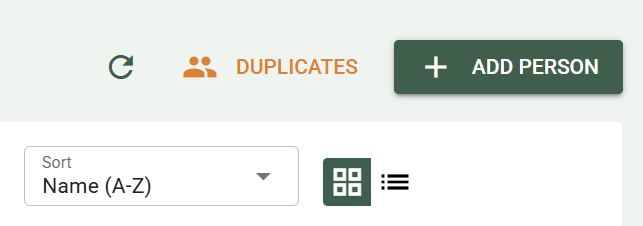
It's easy to accidentally create two persons for the same individual — especially during GEDCOM import. PastPaths has a feature for finding suspected duplicates and merging them.
In the merge dialog, you can also write a free note (e.g. about the correct spelling when there's an encoding mismatch between programs) and tag the merge "Investigate further" if you want to be able to find it again later.
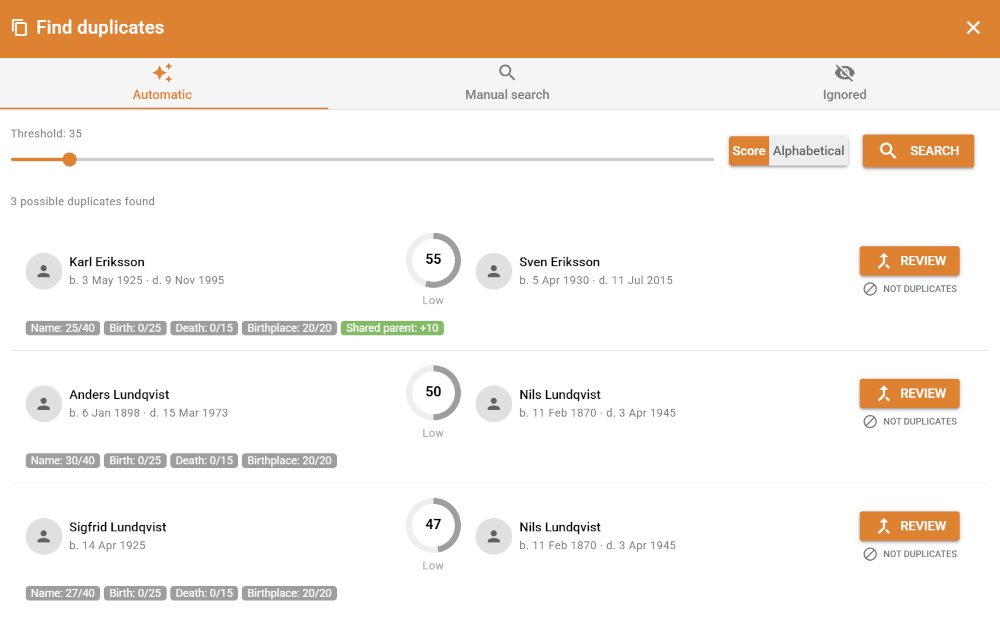
Each person's details also show known parents, siblings, partners, and children — children are grouped by partner, so it's clear if the person had children with more than one partner. This makes it easier to judge whether two records really are the same person before you merge them.
→ Read more about Maintenance and persons without connections
Notes and stories
Biography and notes are shown in their own tab, Biography, the first tab on the person's page. You can format the text (bold, italic, lists, etc.) with the same editor used in the blog. The name and tab bar stay fixed at the top of the page while you scroll, so you always see who you're reading about. The other tabs show counts — relationships, places, events, media, blog posts, and sources — so you can see at a glance what's there.
For short notes — "widowed early," "emigrated in 1893" — use the notes field.
For longer family stories — "Anna's journey to America" — use the blog feature instead. There you can format the text and add images, video, audio, and documents. Tags let you find the story later in several different contexts.
Blog posts linked to the person are shown on the Blog tab of the person's page. Click a post to open it.
Delete a person
Be careful. Only delete if you're sure.
Deletion is permanent
A deleted person cannot be undone. Before removing someone — check that the person isn't linked to events, photos, or sources you want to keep.
There are two ways to delete a person: 1. Click the trash can in the persons list 2. Open a person and click the trash can