Map
The map page in PastPaths gives you a geographic overview of all the places in your database. Places that have coordinates are shown as pins on an interactive map — you can zoom, pan, and click a pin to go straight to that place's page.
Open the map
Click Map in the left-hand menu.
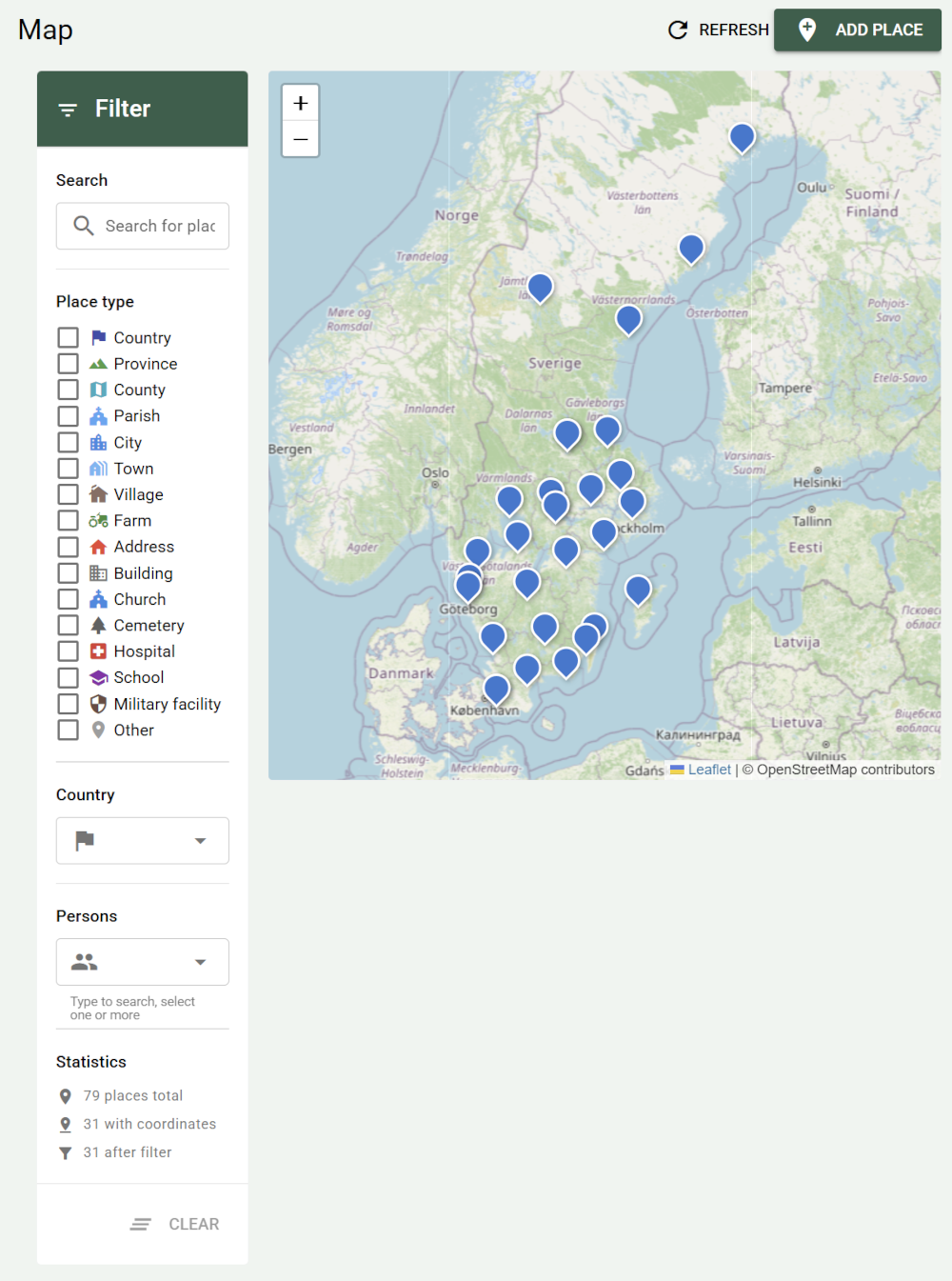
Parts of the map
The filter panel
To the left of the map is a panel with four filters you can combine freely:
- Search — free-text search on the place's name, address, city, or parish. The search ignores upper and lower case, accents, dots, and rings — "orebro" finds "Örebro".
- Place type — show only places of certain types, e.g. churches or cemeteries.
- Country — show only places in certain countries. The list contains every country found among your places.
- Persons — show only places linked to the people you choose. Type to search, and select one or more.
The Clear button removes all filters at once.
Below the filters, the panel shows Statistics: how many places you have in total, how many of them have coordinates, and how many are shown with the filters you've chosen.
The map adapts to your filters
When you change a filter, the pins update immediately. If you have a lot of places, it can be useful to filter by country to zoom in on a particular area.
The map itself
The map uses OpenStreetMap as its base layer. Every place with coordinates is shown as a pin.
- Zoom with the mouse wheel or the buttons in the top left of the map.
- Pan by dragging the map.
- Click a pin to open that place's detail page.
Only places with coordinates are shown
A place without latitude and longitude won't appear on the map, even if it's otherwise well documented. See the Add coordinates section below.
Add a new place from the map page
Click Add place in the top right. A dialog opens with the following fields:
| Field | Required | Description |
|---|---|---|
| Name | Yes | E.g. Hallsberg Church or Storgatan 5 |
| Address | No | Street address or brief description |
| City/Town | No | |
| Parish | No | |
| County | No | |
| Region | No | State, province, or Bundesland — only for countries that use such a level |
| Country | No | Pre-filled with your default country, see Settings → Default country |
| Place type | Yes | See the list below |
| Latitude / Longitude | No | Decimal degrees, e.g. 59.329300 / 18.068600 |
| Description | No | Free text about the place |
| Notes | No | Private notes not shown in reports |
Available place types: Country, Province, County, Diocese, Parish, City, Town, Village, Farm, Address, Building, Church, Cemetery, Hospital, School, Military facility, Other.
Click Save when you're done. The place will appear on the map if you added coordinates.
Add coordinates
The easiest way to find coordinates is to search for the place on openstreetmap.org, right-click on the map, and copy the coordinates.
- Go to the place's detail page (click the pin on the map, or go via Places in the menu).
- Click the pencil icon in the top right to edit.
- Fill in Latitude and Longitude in decimal format.
- Click Save.
The place now appears as a pin on the map.
Coordinates from GEDCOM import
When importing from Ancestry, MyHeritage, or TNG, PastPaths tries to read coordinates from the GEDCOM file if they exist. After importing, check how many places got coordinates — see the With coordinates statistic on the map page.
The place's detail page
Click a pin to open that place's detail page. There you'll find:
- Information — address, city, county, country, coordinates, and description.
- Tags and categories — for organizing the place within your taxonomy.
- Statistics — how many people and events are linked to the place, broken down by event type.
- Mini-map — a small map centered on that particular place (only shown if coordinates exist).
- People tab — all people linked to the place, e.g. lived here, was born here, died here.
- Events tab — events that took place at the place.
- Media tab — photos and documents linked to the place.
- Sources tab — source citations for the place.
Update the map
If you've recently added places on another page and they're not showing up, click Refresh in the top right of the map page. A place you add from the map page appears right away.