Sources
In PastPaths, sources are references to websites, documents, archives, and other places where you obtained your information. Archival material can include parish registers of various kinds, court records, old newspaper articles, and more.
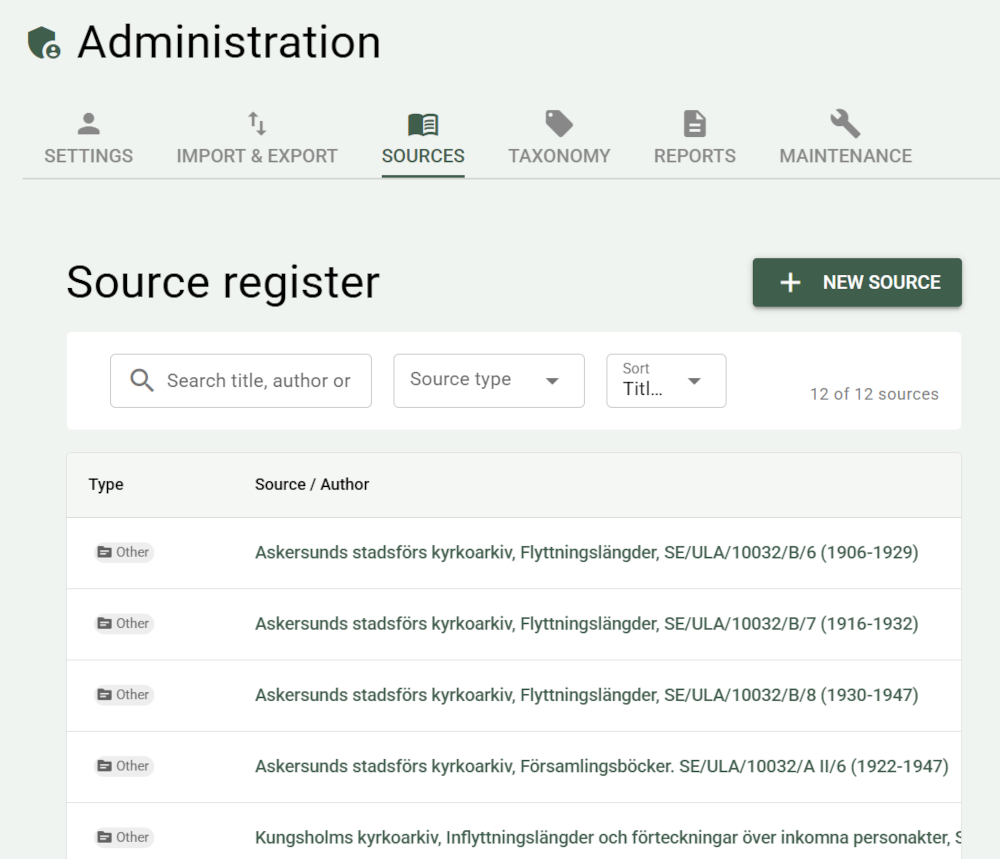
Sort and filter
- Search title, author, repository, call number, or abbreviation — free-text search to find a specific source. The search ignores upper and lower case and accents, so "orebro" finds "Örebro".
- Source type — there are a number of preset source types; if you know you're looking for a book, for example, you can filter them out
- Sort — you can also sort by title, type, author, or number of citations (useful if you know it's a source you use often)
Add sources
There are several ways to add a source:
+ New source gives you an upload form where you can fill in information about the source.
While viewing a person, you can upload a source from there — it's automatically linked to that person.
Source citations for events work the same way as for persons — link sources directly while editing an event.
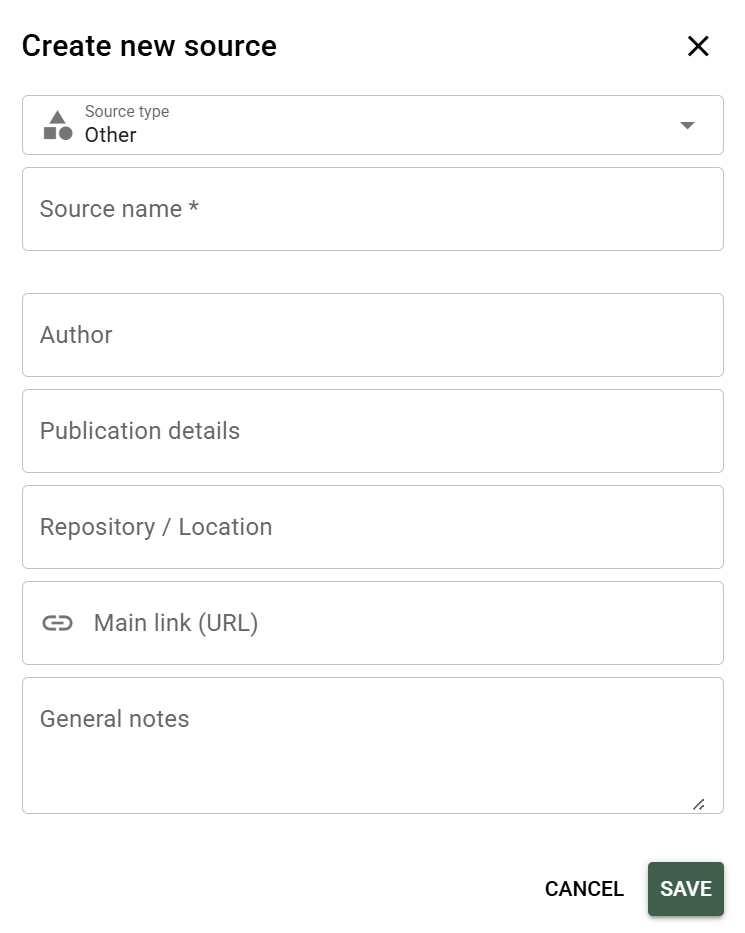
Metadata you can fill in
For each source, you can specify:
- Type of source
- Source name
- Author / originator
- Publication details
- Archive / repository — besides public archives, this can be your own or another private archive
- Main link
- General notes — make notes about the source that you consider important
You don't need to fill in everything
The most important thing is that you add the source — you can always fill in more later. It's better to have 200 sources with just a title than 5 perfectly catalogued sources and the rest in a dusty box.
Media on the source
A source can have its own files linked to it, for example scanned pages from a parish register or a PDF of a record. Open the source and click Add media:
- Choose among the files already in the media library. You can search the whole library, files already linked to the source are marked Already linked, and you can select several files at once.
- Or click Upload new to upload a file from your computer. After the upload, you can link it right away.
→ Read more about the media library
Attachment to a citation
A source citation can have an attachment — for example a screenshot of the page in the parish register, or a document such as a PDF. In the Add source citation dialog, click Select from media library and choose the file.
In the list of citations, the attachment is shown as a thumbnail, or as a document icon if it isn't an image. Click it to open the original.
Reuse a citation
Adding the same citation (source, page, quality, URL, media, notes) to another person, event, or place doesn't mean filling in everything again from scratch every time.
In the citation list (e.g. under a person's "Sources" tab, or on the source's own page), each row has two copy buttons:
- Copy reference — copies the fully formatted reference text to the system clipboard, for pasting into a document or email.
- Reuse on another record — copies the entire citation to an internal clipboard within PastPaths.
When you then open Add source citation on another person, event, or place, a banner appears at the top if you have something copied this way. Click Paste to fill in the form automatically — everything except the actual link to the person/event/place, which is determined by where you opened the dialog. The clipboard isn't cleared automatically, so you can paste the same citation onto several different records in a row.
Merge duplicates
Check at least two sources in the list using the checkboxes, click Merge selected, and choose which one to keep (default: the one with the most citations). Citations and image links are automatically moved to the kept source.
No information from the removed sources is lost:
- Fields missing in the kept source — author, publication, repository, repository contact, call number, URL, abbreviation — are filled in from the removed one.
- Fields where the sources have different values, including title and type, are written into the kept source's notes under the heading "Från sammanslagen källa: title" (From merged source), together with the removed source's notes.
- If only the notes have something new, and the kept source has none of its own, they're moved over as they are.
→ Read more on the Maintenance page
Delete a source
When you delete a source, it's also removed from every record it was linked to — persons, events, places, and blog posts.
Cannot be undone
Deleting a source cannot be undone. If you think you might want to use the source again — export it first.
Sources from the Place Library
The packs in the Place Library carry their own sources. When you import a pack, they're created as real sources in your source list, and every place in the pack gets a citation pointing to the source its details came from.
If you already have a source with the same title, it's reused instead of a duplicate being created.
If you undo a place library import, the sources are removed again — but only those that haven't picked up any other citations in the meantime. If you've linked one of the pack's sources to a person or event yourself, it stays.
→ More about the Place Library
Imported sources from GEDCOM
When you import a GEDCOM file with associated sources, PastPaths tries to find and import them automatically. The program searches the same folder the GEDCOM file is in, and any subfolders.