Media
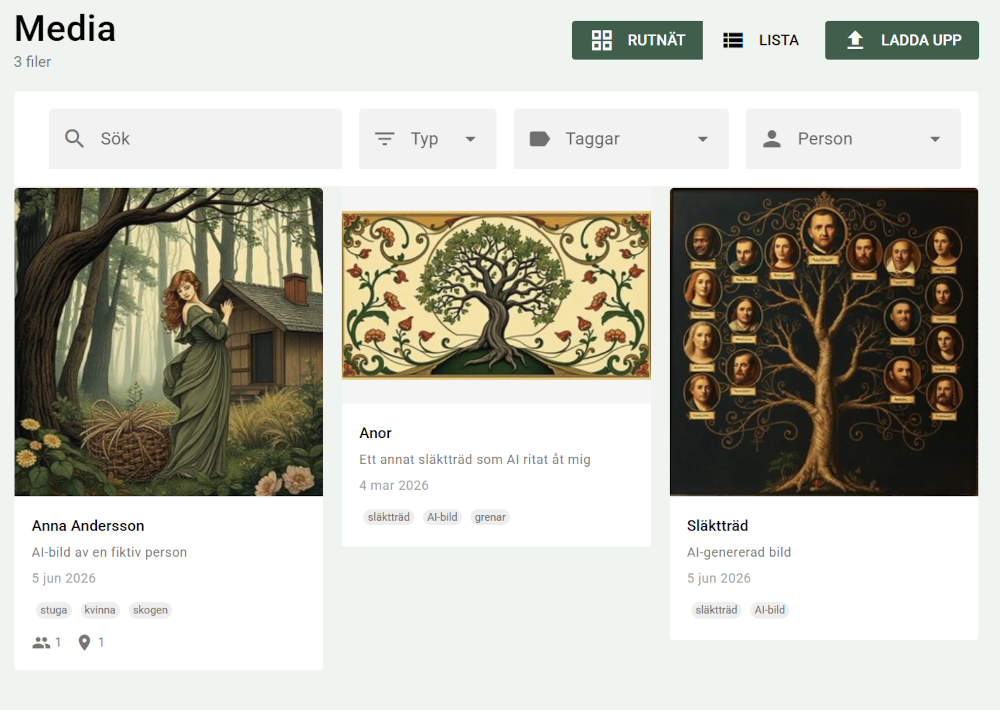
In PastPaths, media means anything that isn't text — photos, scanned documents, audio recordings, films. The same file can be linked to multiple persons, events, and places, so you never need to upload an image more than once.
What formats are supported?
- Images — JPG, JPEG, PNG, GIF, WebP, BMP, TIF, TIFF, SVG
- Documents — PDF, Word (DOC, DOCX), Excel (XLS, XLSX), PowerPoint (PPT, PPTX), ODT, TXT
- Audio — MP3, WAV, OGG, M4A, FLAC, AAC
- Video — MP4, AVI, MOV, WMV, MKV, WEBM
Each file can be at most 50 MB. The upload form shows which file types are allowed and the maximum size. If you choose a file that is too large or has a file type that isn't allowed, you get a message with the file name right away and the file isn't uploaded.
Not every format can be shown in the app
The file is always saved, but not every format can be shown or played inside PastPaths — for example TIFF images at full size or video in AVI and WMV format. TIFF images still get a thumbnail, and every file can be opened in another program.
Upload media
There are several ways to upload:
Media → + Upload gives you an upload form where you can drag and drop files or choose from disk.
While viewing a person, you can upload an image directly — it's automatically linked to that person.
Same thing — link media directly while editing an event or place.
In the source's dialog, you can upload a new file or link an existing one, for example a scanned page from a parish register.
Metadata you can fill in
For each image or file, you can specify:
- Title
- Description
- Date — when was the photo taken / the document created?
- Place — where was the photo taken?
- Persons in the photo
- Linked events
- Source — if the file is a document from a parish register, point to the source
- Tags and categories
You don't need to fill in everything
The most important thing is that you upload the image — you can always fill in more later. It's better to have 200 images with just a title than 5 perfectly catalogued images and the rest in a dusty box.
Link persons to an image
For an image with multiple people, you can link or tag those people in the image by choosing a person from the dropdown menu (the person must already exist in the tree). You can write a short note next to each person ("grandfather in the middle, grandmother on the right, unknown in the background").
Link existing media
Persons, events, and places have a Link existing button (on sources it's called Add media). It opens a dialog where you choose among the files already in the media library — you never need to upload the same file twice.
- Search the whole media library by title, description, file name, or the name of a linked tag or category. Type at least two characters. The search ignores upper and lower case, accents, dots, and rings, so "angstrom" finds "Ångström".
- Filter by type — images, documents, video, or audio.
- Files are shown 30 at a time and more are loaded as you scroll. At the bottom it says how many were found, for example "Showing 30 of 412".
- Files that are already linked are greyed out and marked Already linked.
- Select one or more files and click Link. When everything is linked, a single message is shown, for example "3 files linked to the person".
Profile pictures
A person can have a profile picture — the one shown in lists, the family tree, and reports. The profile picture is the same file that's in the media library; it's just a flag that says "this image represents Erik."
Only images can be a profile picture. You choose an existing image from the media library or upload a new one while editing the person.
→ Read more about the profile picture
Searching the media library
List view is the default. In the media library, you can:
- Search by title, description, file name, or the name of a linked tag or category — the search ignores upper and lower case, accents, dots, and rings
- Filter by type (image/document/audio/video)
- Filter by linked person
Viewing
Click an image to see it full size. From there you can also see all the persons, events, and places linked to the image — and browse to related images.
Where are the images physically stored?
All uploaded files are stored in the uploads subfolder of the PastPaths program folder. The backup on the Import & Export page includes both the database and the uploaded files. If you copy the folder yourself instead, copy the entire folder — not just the database.
The on-disk filename includes the original name (plus a short random code to avoid collisions), so you can recognize the files directly in a file browser if you ever need to look manually.
→ Read more about cleaning up orphaned files and creating missing thumbnails
Delete media
When you delete an image, it's removed from every place it was linked to — persons, events, places. The file is also removed from disk.
Cannot be undone
Deleting media cannot be undone. If you think you might want the image again — export it first.
Imported images from GEDCOM
When you import a GEDCOM file with associated images, PastPaths tries to find and import them automatically. The program searches the same folder the GEDCOM file is in, and any subfolders.
If the image has a title and/or a note in the imported file, they're automatically filled in as the image's title and description in PastPaths.
Prepare the import folder
If the GEDCOM file comes in a zip archive — extract the entire archive to the same location before importing. That way PastPaths will find the images.